Progress Bar แสดงสถานะการดาวน์โหลดด้วย HTML, CSS และ JavaScript
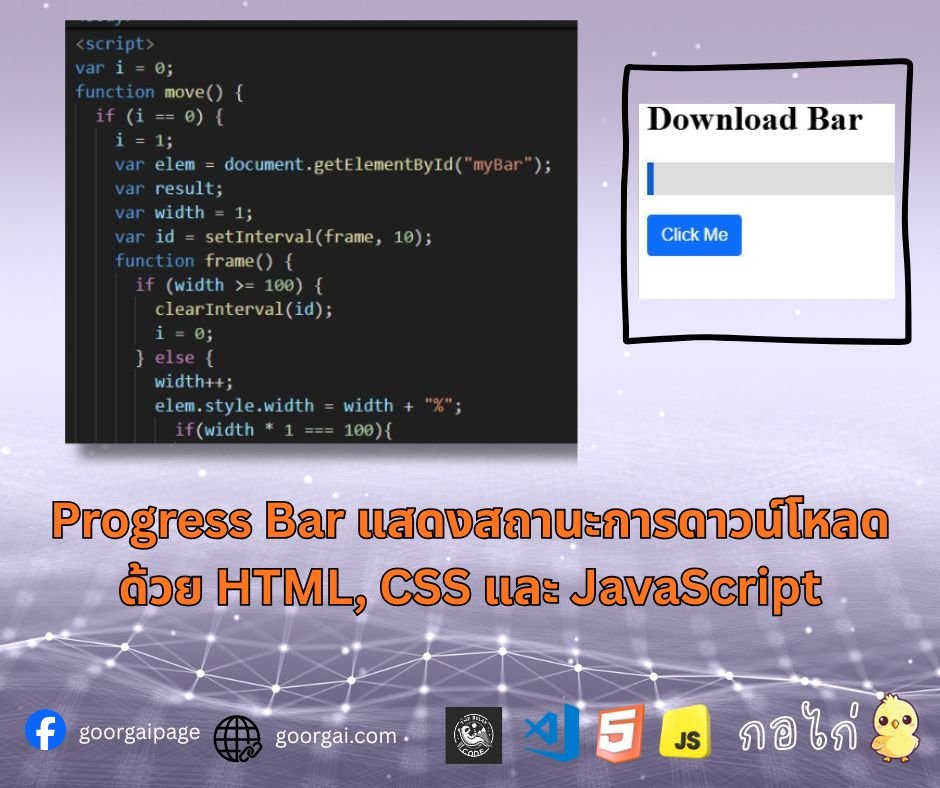
โค้ดนี้สร้าง Progress Bar แบบจำลองการดาวน์โหลด โดยเมื่อกดปุ่ม "Click Me" แถบสีจะค่อย ๆ ขยายจาก 1% ไปจนถึง 100% พร้อมแสดงเปอร์เซ็นต์ด้านขวา และเมื่อครบ 100% จะแสดงข้อความว่า "download completed"
โค้ด CSS#myProgress {
width: 100%;
background-color: #ddd;
}
#myBar {
width: 1%;
height: 30px;
background-color: #0b5ed7;
}
.bl-right{
position: absolute;
right: 0;
margin-right: 10px;
color: #0b5ed7;
}
button {
cursor: pointer;
outline: 0;
color: #fff;
background-color: #0d6efd;
border-color: #0d6efd;
display: inline-block;
font-weight: 400;
line-height: 1.5;
text-align: center;
border: 1px solid transparent;
padding: 6px 12px;
font-size: 16px;
border-radius: .25rem;
transition: color .15s ease-in-out,background-color .15s ease-in-out,border-color .15s ease-in-out,box-shadow .15s ease-in-out;
}
button:hover {
color: #fff;
background-color: #0b5ed7;
border-color: #0a58ca;
}<h1>Download Bar</h1>
<div id="myProgress">
<div id="myBar"></div>
</div>
<br>
<div class="bl-right" id="prlabel"></div>
<button onclick="move()">Click Me</button>var i = 0;
function move() {
if (i == 0) {
i = 1;
var elem = document.getElementById("myBar");
var result;
var width = 1;
var id = setInterval(frame, 10);
function frame() {
if (width >= 100) {
clearInterval(id);
i = 0;
} else {
width++;
elem.style.width = width + "%";
if(width * 1 === 100){
document.getElementById("prlabel").innerHTML = 'download completed';
}else{
document.getElementById("prlabel").innerHTML = width * 1 + '%';
}
}
}
}
}การทำงาน
ส่วนของ CSS (<style>)- #myProgress : กำหนดพื้นที่ของ Progress Bar ให้กว้างเต็ม 100% และมีพื้นหลังสีเทาอ่อน (#ddd)
- #myBar : ตัวแท่ง Progress Bar เริ่มต้นที่ความกว้าง 1% ความสูง 30px และสีพื้นหลังน้ำเงิน (#0b5ed7)
- .bl-right : ข้อความแสดงเปอร์เซ็นต์หรือสถานะ จะถูกจัดวางชิดขวา (position: absolute; right: 0;) และใช้สีเดียวกับ Progress Bar
- button : ปุ่มถูกตกแต่งให้มีพื้นหลังสีน้ำเงิน (#0d6efd), ตัวอักษรสีขาว, มีขอบมน และเอฟเฟกต์ hover เปลี่ยนสีเข้มขึ้น
- <h1>Download Bar</h1> : หัวข้อแสดงชื่อ Progress Bar
- <div id="myProgress"> : กล่องหลักของ Progress Bar
- <div id="myBar"></div> : แท่ง Progress Bar ที่จะขยายความกว้างตามเปอร์เซ็นต์
- <div class="bl-right" id="prlabel"></div> : พื้นที่สำหรับแสดงข้อความเปอร์เซ็นต์ (%) หรือข้อความ "download completed"
- <button onclick="move()">Click Me</button> : ปุ่มที่เมื่อกดแล้วจะเริ่มทำงานฟังก์ชัน move() เพื่อขยับ Progress Bar
- ตัวแปร i ใช้ควบคุมไม่ให้กดปุ่มซ้ำจนฟังก์ชันทำงานซ้อนกัน
- ฟังก์ชัน move()
- กำหนดค่าเริ่มต้น width = 1
- ใช้ setInterval(frame, 10) เพื่อเรียกฟังก์ชัน frame() ทุก ๆ 10 มิลลิวินาที
- ใน frame()
- ถ้า width >= 100 จะหยุดการทำงาน (clearInterval) และรีเซ็ตตัวแปร i
- ถ้าไม่ถึง 100 จะเพิ่มค่า width++ และปรับความกว้างของ #myBar ตามเปอร์เซ็นต์
- เมื่อถึง 100% จะเปลี่ยนข้อความใน #prlabel เป็น "download completed"
- ถ้ายังไม่ถึง 100% จะแสดงข้อความเป็นเปอร์เซ็นต์ เช่น 45%
JavaScript Tutorial
2025-12-12 00:44:11